---
title: How to Set Up Mesh
slug: how-to-set-up-mesh
description: Learn how to easily set up a mesh network using the Xunison router application on Android TV. Get step-by-step instructions on selecting the "Router App," adding a secondary router without internet, pairing the devices, and waiting for the Mesh LED to ind
createdAt: 2022-01-11T10:15:36.000Z
---
Setting up mesh using the Xunison router application on your Android TV is a simple process.
**Note: To set up the mesh, at least two devices (routers) are required:**
**1) Primary Router:** The device should be connected to the power and ethernet cables.
**2) Secondary Router: **It should be connected with a power cable. Do not provide secondary router with either a WAN connection or 4G.
The secondary router should not have an internet connection.
**Keep a minimum distance of 3 to 4 meters and a maximum of 30 to 35 meters between the two routers.**
### Follow the steps below to set up mesh mode:
### Step 1: Select "Router App"
Choose the **"Router App"** from the ATV dashboard.

### Step 2: Select Gateway
Choose the gateway that you want to use for the Mesh configuration.

### Step 3: Add Satellite.
Scroll down further and click on **"Add Satellite."**

### Step 4: Pairing
Press and hold the pair button on the secondary router for **5-10 seconds**. This will cause the Mesh LED to flash quickly in ***yellow***. Then, click on **"Done"** to proceed.

### Step 5: Timer Starts
Upon successful establishment of the Mesh network, the Mesh LED will remain steady in either ***green***, ***orange***, or ***purple*** color. The timer for this process can last up to **360 seconds.**
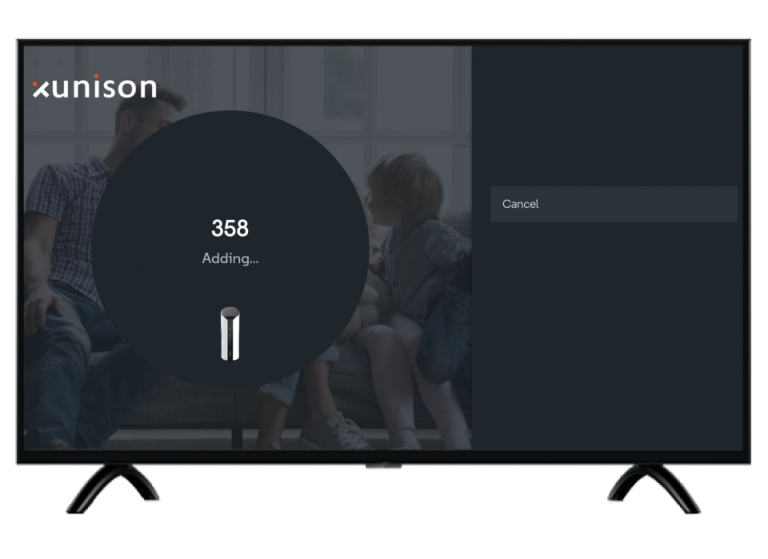
The image below demonstrates that the device is operating in satellite mode, indicated by a ***purple LED.***

### Step 6: Mesh Graph
In the displayed image, it is evident that the Mesh configuration has been completed successfully.
